
AI MODELS: CURRENT CAPABILITIES
Updated: March 05, 2026 – Please visit this page regularly for the latest updates.
Please watch the Yehuda AI magic
NEW AI FEATURE ENHANCEMENTS
-
Multi-Stone Jewelry Detection
-
Accurate analysis of multiple stones within a single jewelry piece.
-
-
Small Stone Identification
-
Enhanced detection capabilities for smaller stones.
-
-
Manual Marking & Re-Analysis
-
Easily mark stones that were not evaluated (or require re-evaluation) and regenerate AI results instantly.
-
-
Per-Stone AI Certainty
-
View the confidence level of each stone’s AI result, displayed as a percentage.
-
-
Adjustable Confidence Threshold
-
Customize the AI confidence level to match your operational requirements.
-
IMPORTANT
-
Please ensure that no tags, paper, or other reflective objects are visible in the image. Reflections may interfere with the AI analysis and lead to incorrect results.
-
Any stone that shines very strongly on any of the screens may negatively affect the AI results of nearby stones.
If possible, please remove the overly bright (shining) stone and re-run the test. If the very strong shining stone is part of a jewelry piece, you may need to ignore the AI results for the nearby stones.
AI CAPABILITIES
Minimum Stone Size – Manual Marking
-
0.01 ct. (supported on both devices)
Minimum Stone Size – Automatic Stone Finder
-
Watson AI
-
Approximately 0.02-0.03 ct.
-
-
Sherlock AI
-
Approximately 0.06-0.07 ct.
-
TESTING GUIDELINES
Loose Diamonds
-
Divided Tray (Preferred)
-
Place one diamond per square.
-
-
Undivided Tray
-
Ensure stones are separated and do not touch each other.
-
-
Best Practice
-
Place diamonds table-down for optimal results.
-
Mounted Jewelry
-
Supported Jewelry Types
-
All jewelry types are supported.
-
MARKING STONES TO BE ANALYZED (Manual Marking)
It is recommended to watch the videos for easier understanding.
1. Marking stones on your phone.
2. Marking stones on your computer.
If a stone is not detected (not painted/outlined by the AI) or, if you would like the AI to “think again” about the stone, you can mark it manually and regenerate the AI.
On Your Phone
-
Generate the AI result.
-
After the AI is done and before saving, press “Analyze Custom Area”
-
Use two fingers to zoom in.
-
Using one finger, mark the outline the stones you want the AI to analyze.
-
Do not mark outside the stones!!!
-
Tap Generate.
-
Repeat if needed.
On Your computer cloud.yehuda.com, after you saved the test.
It is recommended to watch the video:
-
Sign in to cloud.yehuda.com.
-
Go to Gallery and select the desired test.
-
Click Generate AI Result.
-
When the AI analysis is complete, click Analyze Custom Area.
-
On the top-right, click the Zoom icon to zoom in.
-
At the top, click the Pen icon to switch to the Drag icon .
-
You can now move the zoomed-in view to the desired area.
-
-
Click the Drag icon again to switch back to the Pen icon .
-
Using your mouse (or your finger on a touchscreen), carefully outline the stones you want the AI to analyze.
-
Repeat switching between Pen and Drag/Pan as needed until you finish marking all desired stones.
-
Important: Do not mark outside the stones.
-
-
Click Generate.
-
You may repeat the process to mark and analyze additional stones.
-
At the bottom of the page, you can navigate between the original AI results and the history of your marked (custom area) results.
AI CONFIDENCE LEVEL
After you generated the AI results, you can tap on any stone and get the AI level of confidence. By default, the AI will mark any stone with above 80% certainty. When in doubt, this number is important to take into consideration. The close to 100%, the more the AI model is certain.
Stone which get less than 80% will be marked in black. You are still able to see the confidence level with a black marked stone.
After saving the test, you can go to the back office at cloud.yehuda.com and change the confidence level. For example, if a stone certainty level is 79% it will be marked in black, but if you reduce the level to 79% you will see what is the AI model result.
Change the confidence level of the AI results
After saving a test, on your computer go to cloud.yehuda.com and log in using your app credentials.
-
In Gallery, select a test and click Generate AI.
-
Once the AI results are generated, click/tap any stone to view its AI certainty (confidence) score.
How to interpret the score
-
99% = maximum confidence
-
80% = still a very high-quality result
-
Lower percentages indicate less certainty and should be interpreted with caution.
Default filtering
-
By default, results are filtered at an 80% confidence level.
-
Stones that receive below 80% are marked in black.
-
You can still click a black-marked stone to see its confidence score.
Changing the confidence level
-
You can change the confidence threshold by adjusting the confidence slider.
-
Example: If a stone’s certainty is 70%, it will be marked in black at the default 80%. If you lower the slider to 70%, the AI v result will be shown normally.
Please note: Currently, after generating AI on your phone, you can tap any stone and see its confidence score. Changing the confidence level (threshold) is only available after saving the test and using cloud.yehuda.com on your computer.
False Positives
The AI may occasionally mark metal areas or reflections.
These markings should be disregarded.
Important notes
-
Detector vs. AI accuracy:
-
Yehuda detectors will not miss a lab-grown diamond when the final decision is verified by a human.
-
A small percentage (about 2%) of natural diamonds are detected as LGD (false positives) by the detector. In those cases, the AI model will also classify them as LGD, because it relies on the detector’s physical reading.
-
-
AI accuracy:
-
Currently about 99% in our internal tests, and the model is still learning and improving.
-
-
Note:
-
The AI model serves as an advisory tool, not a final authority.
-
Continuous updates and training will further enhance its performance.
-
AI Stone Classification Colors
-
🔵 Blue – Natural Diamond
-
🔴 Red – HPHT
-
🟢 Green – CVD
-
🌸 Pink – CZ (Other Simulants)
-
🟠 Orange – Moissanite
-
⚫️ Black – Refer – AI uncertain (Move the stone and retest. Manual review required)
AI accuracy heat map
Here is a “heat map” table showing the current internal accuracy of the AI model with confidence level of 80%.
The rows represent the actual stone type (ground truth), and the columns represent the AI model’s prediction.
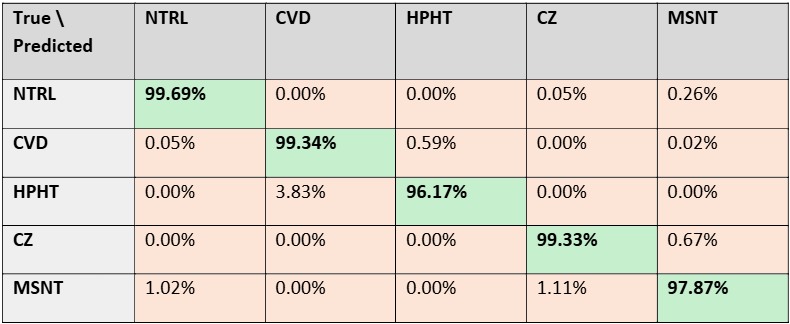
How to Read This Table:
This table shows both the accuracy and the exact types of mistakes the AI model makes in our internal tests on a sample of 14,112 stones, when it is set to mark stones with 80% confidence.
For example, look at the Moissanite row (How were the Moissanite stones predicted by the AI model):
-
1.02% of Moissanite stones were classified as NATURAL.
-
0.00% of Moissanite stones were classified as CVD.
-
0.00% of Moissanite stones were correctly classified as HPHT.
-
1.11% of Moissanite stones were classified as CZ.
-
97.87% of Moissanite stones were classified as MOISSANITE.